
Record a meaningful moment
Mark a conversation, discovery or other moment after it happens. You decide what deserves a mark; the product does not monitor the session.
Notice a moment. Offer an opening.
A companion moves her miniature into the woodland ruins while the group watches. Mark meaningful moments and prepare an invitation for someone who has had fewer.
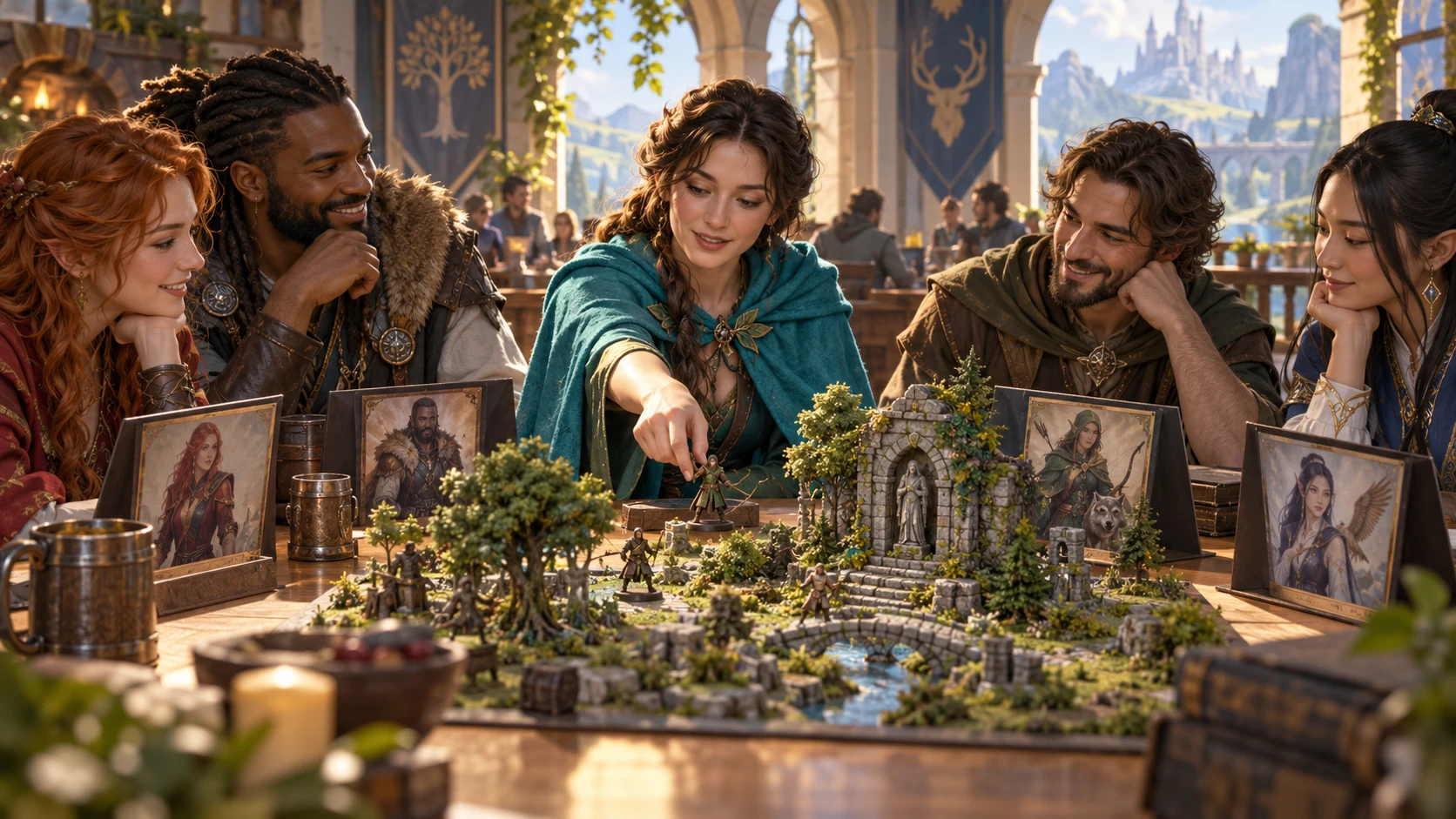
Keep the whole table in view
A count is a prompt to look again at the opportunities your table wants.
Mark a conversation, discovery or other moment after it happens. You decide what deserves a mark; the product does not monitor the session.
A quiet evening and a quiet campaign are different questions. Choose session or campaign counts before asking who could come next.
Read a suggested player, scene opening and handover cue. Fit them to the current fiction and leave the response to the player.
Review the suggested way to share the focus onward. A moment can become a group choice without settling permanently on one player.
Offer a natural opening
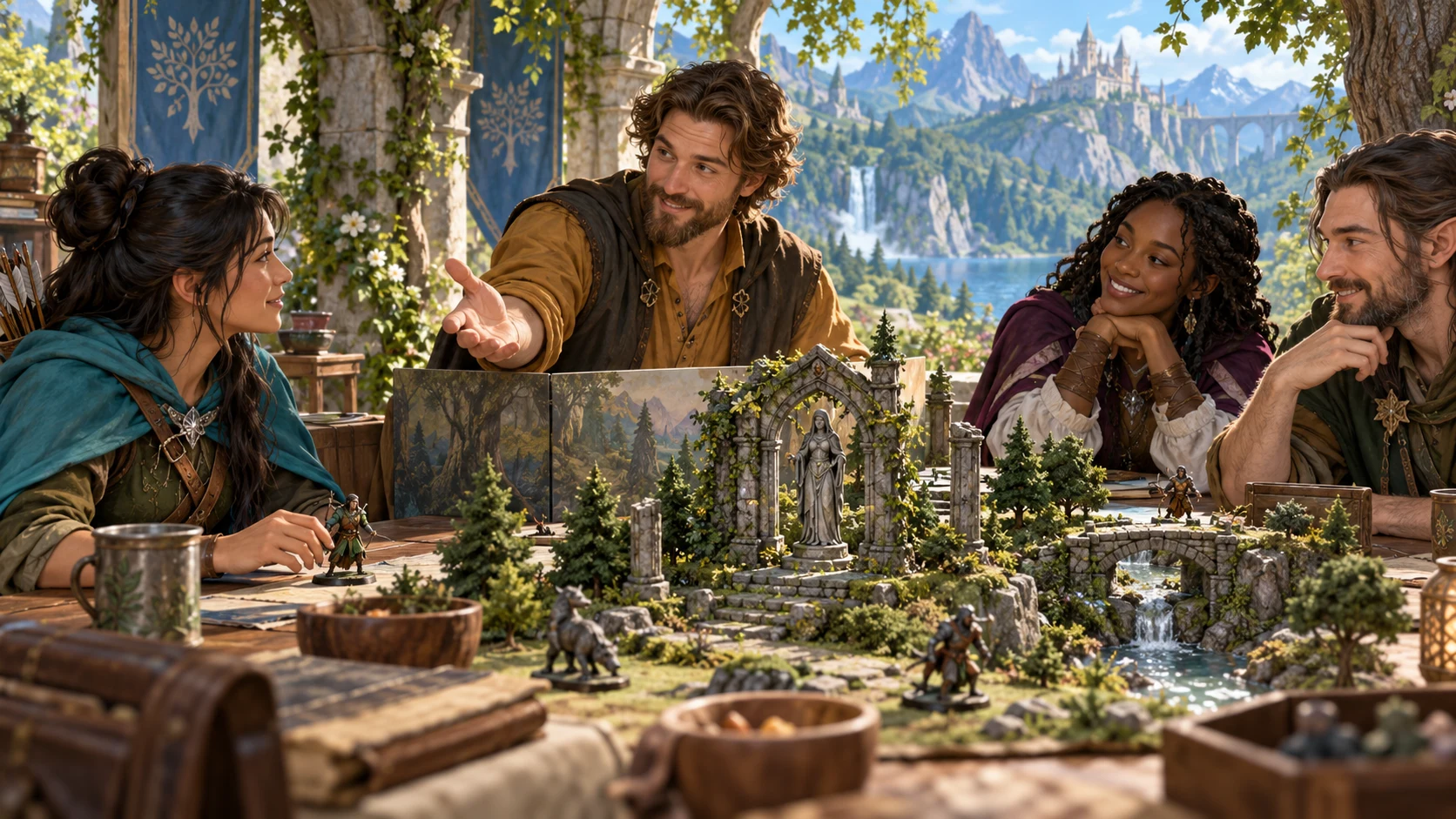
A game master extends an open hand toward a companion beside woodland ruins. This illustration suggests inviting a response; it is not an application screen.
Choose a scoring window, then request a suggestion. Review its opening and handover cue against the scene, player preference and the opportunity you want to offer.
From a mark to an opening
A deliberate planning loop before the next beat.
Enter names and optional character backstory hooks. Keep those notes focused on the fictional thread you may want to revisit.
Mark spotlight on the roster card after a meaningful moment. Both session and campaign counts change; correct a mistaken mark with minus one.
Choose This session or The whole campaign and press Suggest next spotlight. Use New to change the seed control or Reroll for another drawn suggestion.
Adapt the opening and offer it at the table. Mark the player’s spotlight only after the moment occurs; Save or Copy a prompt you want to keep.
The spotlight toolkit
Know what is counted, suggested and saved.
Add a player name and an optional character backstory hook. Rename or edit those fields on the roster cards; the product keeps one running roster on this machine.
Mark spotlight when a player has a moment. Plus one and minus one adjust both session and campaign counts, with zero as the minimum; the tool does not listen to play.
Balance over This session or The whole campaign. When every session count is zero, the session view uses campaign totals and the suggestion explains that fallback.
The suggestion draws from the lowest counts in the chosen window. A seed breaks ties in the current roster order; a lower count invites a closer look, not a judgement about the player.
Read a scene type, opening, backstory direction, handover cue and way to pass the focus onward. These are drawn prompts that need your judgement about the current scene.
Start a new session clears session counts and keeps campaign totals. Reset all counts clears both; neither creates an archive of earlier sessions or individual moments.
Save a useful suggestion as a separate machine-local snapshot. Open restores the displayed suggestion, without restoring the roster, scoring mode or seed controls.
Copy the player, counts, scene description, opening, backstory direction and handoff text into your notes. Copied text omits seed, player ID and the fallback explanation; keep those details separately.
Three views, two windows
Roster, Suggest and Saved support the same manual planning loop.
Edit player labels and backstory hooks, mark moments and review each meter. This is one running roster, without separate campaign workspaces.
Use the current session count when any session marks exist. When every session count is zero, the whole roster uses campaign totals instead.
Use campaign totals directly when reviewing longer patterns. Starting a new session keeps these totals while clearing the session counts.
Open a saved suggestion to read the earlier output. It does not reset roster counts, scoring mode or seed; keep that older context in mind.
The group listens
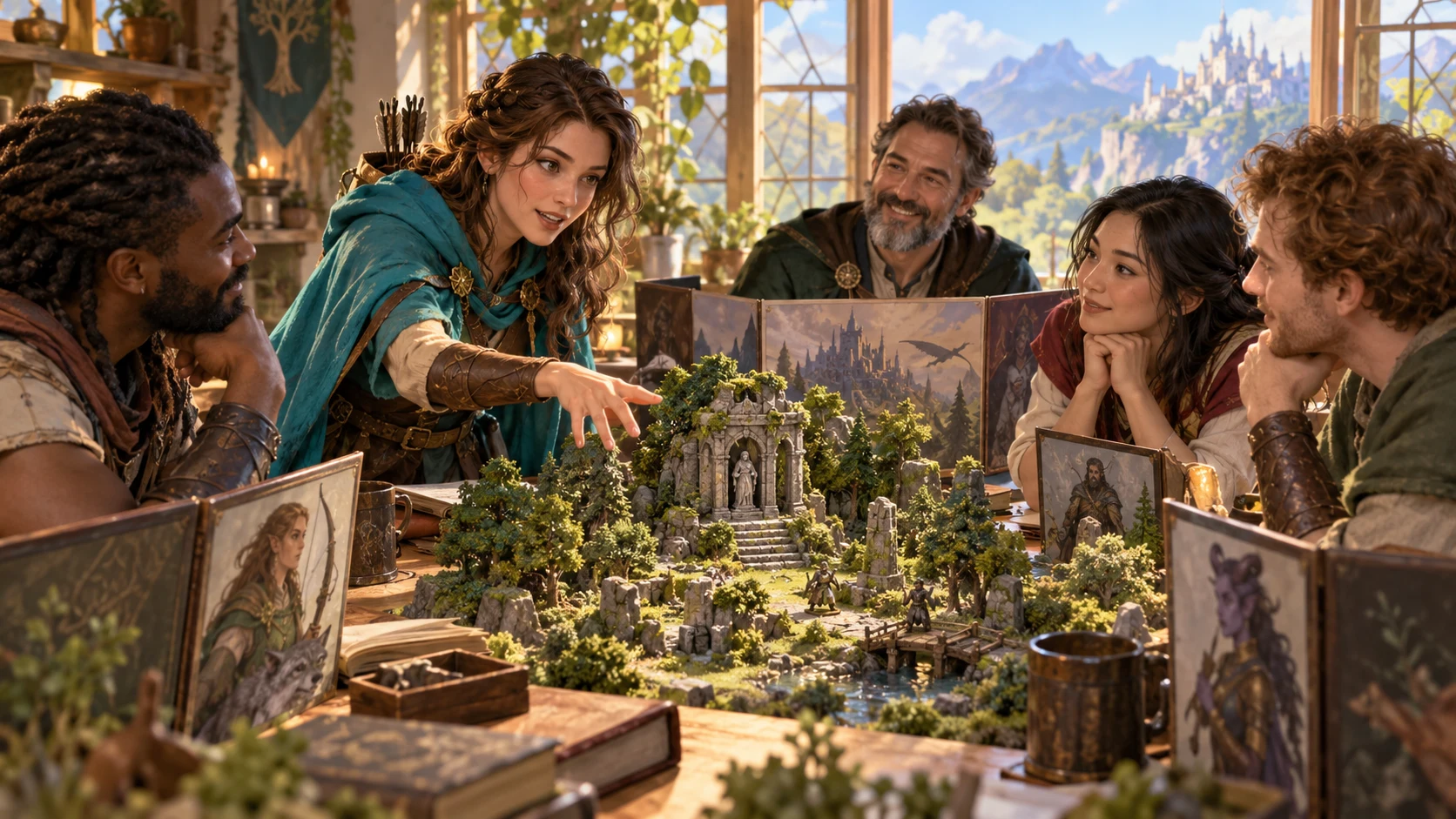
A woman addresses companions around the ruined woodland model. This illustration shows an opportunity to contribute, not generated image output or a guaranteed table result.
Use the opening as an invitation rather than a prescribed reaction. Listen to the response, then decide how the next character can support or develop the scene.
Another angle, the same care
Roster state and scoring mode matter as well as the seed.
Use the same full roster order, names, hooks, counts, mode and seed to repeat a suggestion. A seed alone is insufficient.
All-zero session counts use campaign totals for everyone. The displayed suggestion explains the fallback, but copied text omits that explanation.
The displayed suggestion retains its earlier count snapshot when you mark, rename or remove a player. Generate again for a current reading.
Marking a suggested player can be repeated; it does not automatically clear the result or prevent a duplicate mark. A removed player has no matching roster entry to update.
Context before arithmetic
Simple counts cannot settle whether a moment is wanted or fair.
These manual marks do not measure minutes, skill, engagement or contribution. A lower count asks you to look closer; it does not rank people.
Scene types and handoff directions are drawn suggestions, not semantic backstory analysis. Check the people, stakes and proposed opening against your campaign.
Offer attention without forcing speech, feelings or choices. Player preference, consent and the fiction matter more than equal counters.
There is no automatic session listening, behavioural analysis, enforcement or automatic data transfer to other products. You choose the moment and mark it yourself.
Choose access for your toolkit
Begin with a free VISINVOKE account, then review your required selection and subscription.
Select Player Spotlight Balancer individually. A free account does not by itself include paid generator access.
Choose five eligible standalone generators. Review tools and terms in your account; the selection pack does not include every VISINVOKE product.
Choose more selection capacity when it suits your toolkit. Review current tools and reselection terms before changing your subscription.
Combat PRO, Battlemaps and image products retain their own access requirements. Linked tools are separate from this generator selection.

Changes auto-save after a short delay. Saving is best effort, without a cloud library, automatic backup or reconciliation between open windows.
Save a useful output as a separate snapshot. Each Save creates another one; the snapshot does not contain a complete restorable roster.
Open restores the displayed suggestion without restoring the roster, scoring mode or seed controls. Review older counts before marking the player again.
Copy provides the scene and handoff text. Preserve replay details and the campaign-fallback explanation separately, and review private information before sharing.
Start a new session clears session counts; Reset all counts clears both windows. Remove, reset and Delete act without confirmation or undo.
Build your tabletop toolkit
Each card opens its own public website. Review purpose and access separately; links do not promise included access or automatic synchronisation.
Discover and open your supported Windows products through one connected VISINVOKE account.

Explore environment packs for tactical locations and the places your encounters unfold.
Prepare opposition and run tabletop encounters through a separate product with its own access.
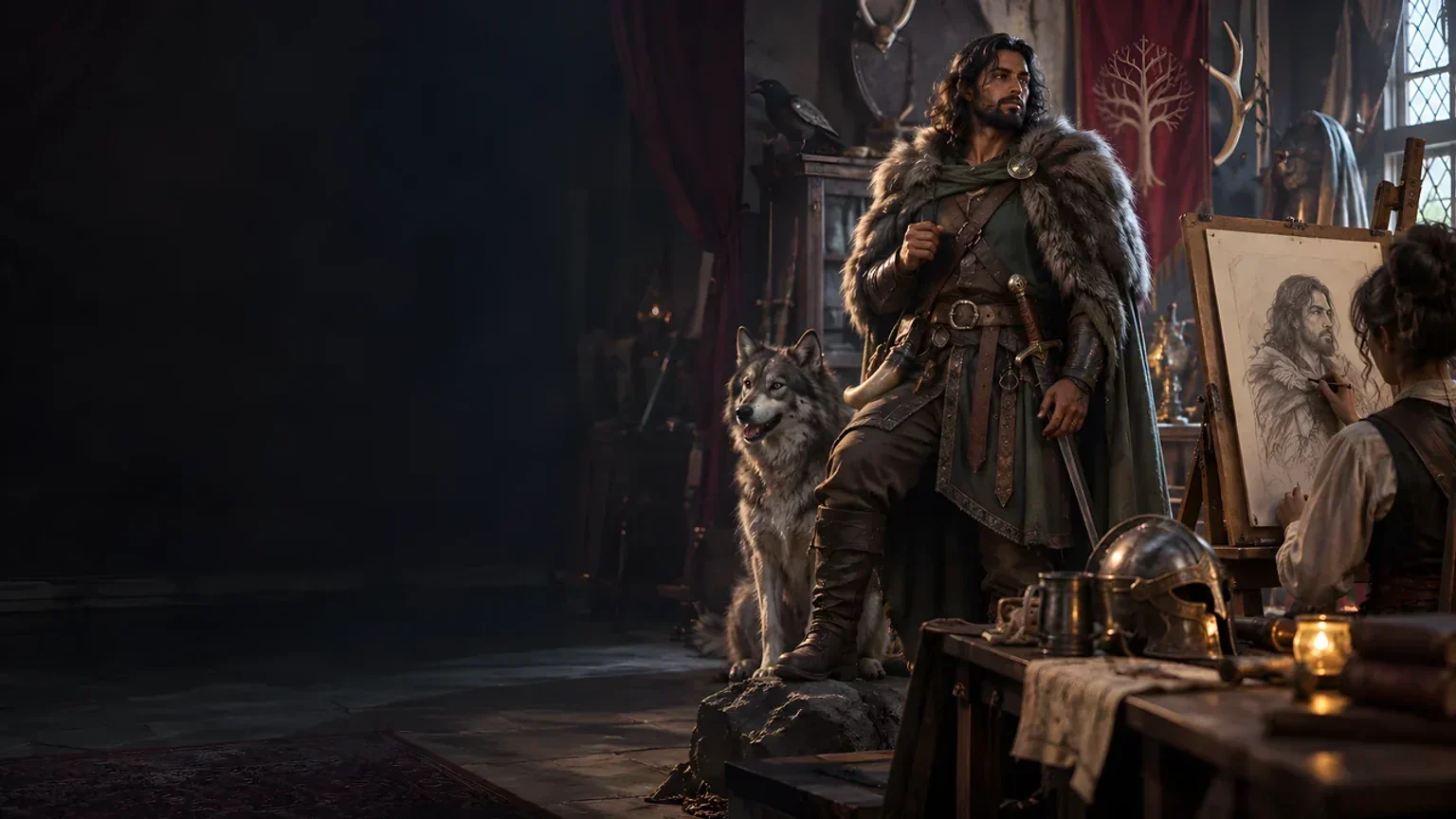
Create focused character, monster, item and location images to complement your tabletop preparation.

Create guided commercial visuals for websites, brochures and wider creative projects.

Explore a separate futuristic RPG experience with its own world, characters and progression.
Product artwork illustrates tabletop invitations and shared moments, not application screens or actual generated image output.
Quick answers
Understand the signal and the current workflow before opening the tool.
They count moments you manually mark, not minutes, speaking time, engagement or player quality. Mark spotlight adds one to both session and campaign counts; minus one reduces both without going below zero. The meter compares the selected count with the highest count, not the group’s total time. There is no dated event log or individual scene history. Use the signal alongside player preference, pacing and conversation.
This session reads session counts; The whole campaign reads campaign totals. When every session count is zero, the session view falls back to campaign totals for the entire roster, and the suggestion states that it has done so. Once any session count is positive, all players use session counts, including those at zero. Start a new session clears session counts only, so the initial fallback can occur again. Reset all counts clears both windows without an archive or undo.
A seed alone is insufficient. Keep the same full roster order, names, backstory hooks, counts, scoring mode and valid whole-number seed. Selection draws from minimum-count ties, then draws scene and handoff prompts. New changes the seed control only; Reroll draws with a new seed. A displayed or saved suggestion keeps its earlier counts when the roster changes. Generate another suggestion when you want a current reading.
It draws a scene type, opening and descriptive directions rather than analysing the meaning of a backstory. One possible tie-in includes the supplied hook; others are general suggestions. Check every detail against your established fiction and player preferences. There is no scene-type picker, automatic assessment, guaranteed fairness or enforced player response. Offer an opportunity and let the player choose how to respond.
Roster changes auto-save after a short delay in machine-local application data, but saving is best effort. There is no cloud sync, automatic backup, browser-data migration or reconciliation between open windows. A missing or unreadable roster file can load an empty list. Saved suggestions are separate local snapshots; each Save creates another one. Open restores output only, not the roster, mode or seed. Delete removes a snapshot without undo.
Copy includes the suggested player, count, scoring-window label, gap to the lead, scene description, opening, backstory direction and handoff text. It omits seed, player ID, complete roster and the campaign-fallback explanation; keep replay and fallback details separately. Review private information yourself. The current product has no roster JSON export, import, print or audience-switch control. Create a free VISINVOKE account, choose required paid access and open the tool through Desktop Command Centre on Windows.
Continue in VISINVOKE
Create a free VISINVOKE account and choose required standalone generator access.
Get Desktop Command Centre from your account installer page. Sign in on Windows, then open Player Spotlight Balancer.